Learn Excel From Absolute Beginner to Expert
Unlock dynamic array formulas, Pivot dashboards, Power Query data cleaning pipelines, and VBA macro scripts. Designed for corporate analysts and students.
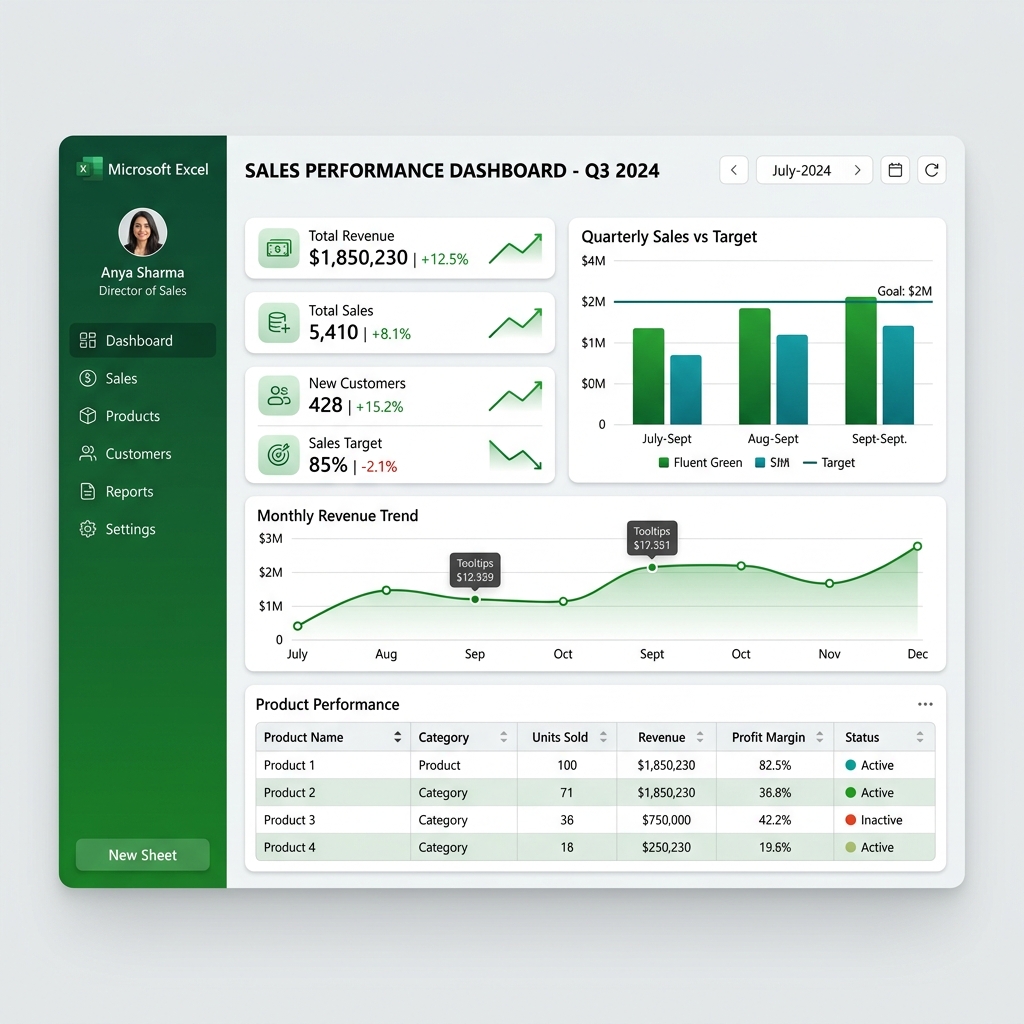
📊 Dynamic Interactive Platform
- Interactive Live-Evaluating Spreadsheet Simulator
- Dual Language Content (Hindi + English Mode)
- Windows / Mac Multi-OS Keyboard Shortcuts
- Dynamic Timed MCQ Quiz Certification Engine
📈 Student Dashboard
Answer questions correctly, practice inside cell sandboxes, and compile formulas to earn XP points!
Workbook Structure Mapping Directory
Visualizing sheets, absolute column cells, active ranges, and reference boxes for data entry processes.
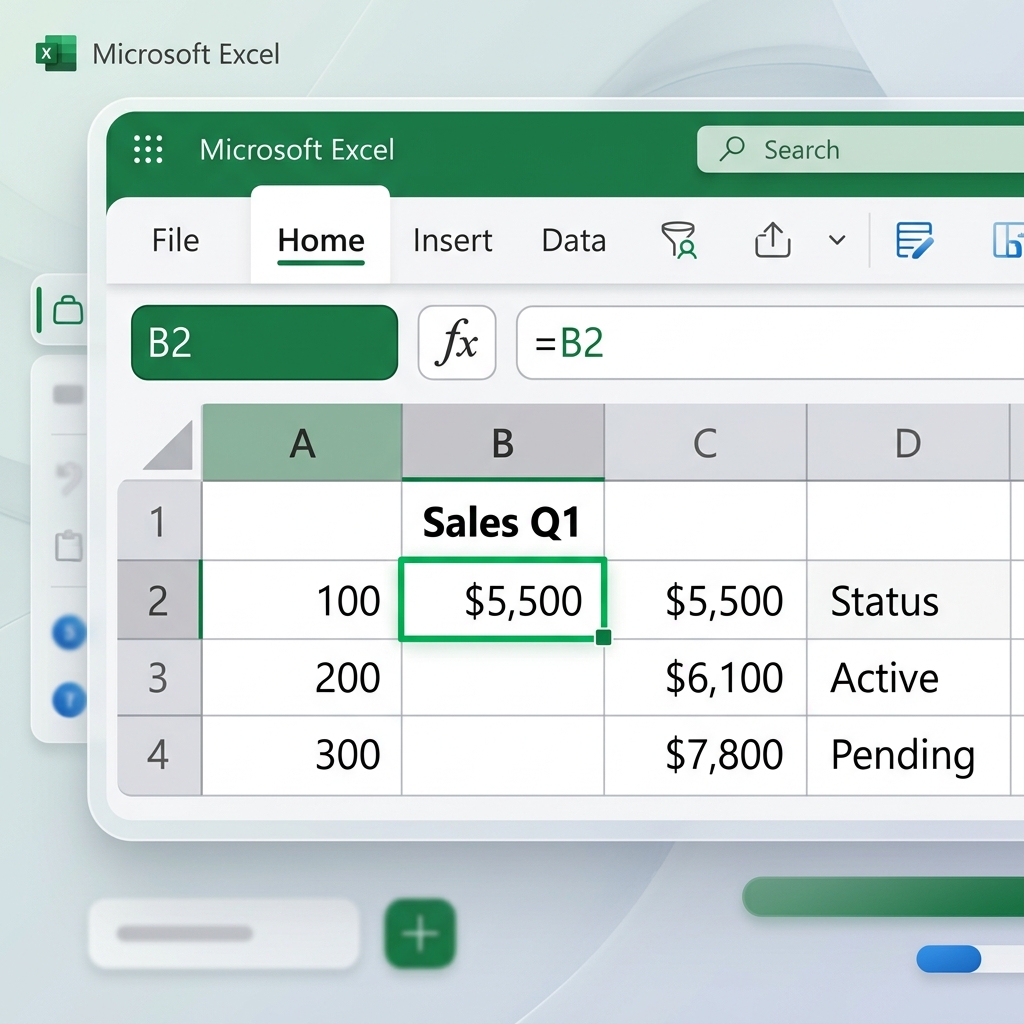
1. Cells Grids & Address Ranges
Visualizing rows, columns, name box, and grid address points (e.g. C4).
2. Interactive Charts & Visual Metrics
Data modeling transforms column inputs into beautiful clean layouts.
Excel absolute Beginner Blueprint
Understand what spreadsheets are, basic typing guidelines, file formats, and freeze panes.
1. Workbook vs Worksheet
- Workbook is the whole Excel file (.xlsx)
- Worksheets are tabs inside the workbook
- Each sheet contains 1,048,576 rows & 16,384 columns
2. Cell Ranges & References
- A Cell is the intersection of a row & column
- Cell reference uses column letter first (A1, B5)
- Ranges represent a block of cells (A1:B4)
3. Flash Fill & Autofill
- Autofill: Drag corner box to fill repeating dates/numbers
- Flash Fill: (Ctrl+E) Auto-detects data split patterns
- Freeze Panes: Keep headers visible when scrolling
Full Excel Tabs Blueprint
Every command, group, and tool in the Excel Ribbon menu structure, mapped tab-by-tab.
Visual Map: MS Excel Ribbon interface grids, cells reference name box, and formula FX bar
Font & Alignment
- Apply classic cell borders, fills, and text weights
- Wrap Text: Push long text strings onto multiple rows inside a cell
- Merge & Center: Combine selected cells into one single title cell
Number Format Group
- Format cell numbers as Currency, Percentages, Decimals, or Dates
- Use Accounting style to align dollar values neatly
- Increase/Decrease decimal places with simple buttons
Styles (Conditional Formatting)
- Highlight cell ranges based on dynamic rules (e.g. > 100)
- Apply color scales, data bars, and warning indicators
- Format cell selection blocks as beautiful interactive Tables
Cells & Editing
- Insert/Delete worksheet columns, rows, or specific cell blocks
- Autosum (Alt+=) instantly adds values in adjoining rows
- Find, Replace, and Sort filters to manage raw ledger items
PivotTables & Tables
- PivotTable: Summarize, analyze, and pivot massive ledgers instantly
- Recommended PivotTables based on data shapes
- Insert standard Excel Tables with zebra designs
Charts & Visualizations
- Insert Column, Bar, Line, Pie, and Scatter charts
- Sparklines: Mini cell-sized charts showing raw value trends
- Filters: Insert Slicers and Timelines for interactive charting
Page Setup Group
- Configure Margins (Normal, Narrow, Wide) for printable documents
- Change Orientation between Portrait & Landscape view
- Print Area: Select specific cell blocks to print, ignoring blank columns
Name Manager & Auditing
- Name Manager: Assign custom names to ranges (e.g. TaxRate = 0.18)
- Formula Auditing: Trace Precedents/Dependents to see how cells link
- Evaluate Formula: Step-by-step math solver tool
Get & Transform (Power Query)
- Import data from TXT, CSV, SQL, Web pages, or folder files
- Power Query: Extract, transform, clean, and load databases
- Merge tables & append mismatched database lists
Data Tools & Forecasts
- Text to Columns: Split first/last names using comma delimiters
- Remove Duplicates: Erase repeating rows instantly
- Data Validation: Restrict cell entries to dropdown choices
Worksheet Protection
- Protect Sheet: Prevent editing of formatted formula cells
- Protect Workbook: Block users from adding/deleting worksheet tabs
- Insert editable ranges for specific employees with custom codes
Window Layout Controls
- Freeze Panes: Lock row 1 or column A in place when scrolling
- Gridlines & Formula Bar: Toggle sheet grid visibility
- Split active window into independent vertical panels
VBA Macros & Forms
- Record Macro: Save repeating accounting tasks as hotkey macros
- Visual Basic Editor: Program complex automation workflows
- Insert Form Controls: Checkboxes, dropdowns, and execution buttons
Interactive Excel Spreadsheet Simulator
Enter numbers inside cell blocks. Type active math functions inside the FX bar below to calculate ranges instantly!
| A | B | C | D | E |
|---|
Excel Formulas & Functions Library
Select a logical or lookup function below to study syntax, common errors, and real use cases.
SUM / AVERAGE
Math & StatisticalAdds all the numbers in a range of cells. Average calculates the arithmetic mean.
Step-by-Step Instructions:
- Click inside a blank cell (e.g. C5).
- Type =SUM( and highlight cell range (e.g. C1:C4).
- Press Enter to dynamically calculate totals!
PivotTable Mastery & BI Modeling
Master Calculated Fields, timelines, Power Query transforms, and DAX modeling for interactive dashboards.
1. Build PivotTables
- Select ledger range > Insert Tab > PivotTable
- Drag fields into Filters, Columns, Rows, and Values
- Use 'Show Values As' to calculate percentage of columns
2. Slicers & Calculated Fields
- Insert Slicers: Filter multi-table grids visual-style
- Calculated Fields: Build custom formulas directly inside pivots
- Connect Slicers to 3 different Pivot charts for dynamic updates
3. Power Query Transformation
- Merge Queries: Match SQL keys or sheets cleanly
- Unpivot Columns: Shift short wide tables to long lean layouts
- M Language: Power Query scripting engine
4. Power Pivot & DAX
- Data Modeling: Create relationships between sheets
- DAX: Write powerful formulas like CALCULATE() and DIVIDE()
- Establish high-level business KPI metrics
Keyboard Shortcuts database Console
Filter Excel shortcuts instantly using the live search engine bar below.
VBA Macros & Developer Guide
Unlock Excel automation. Write clean Visual Basic scripts and generate invoices with single clicks.
Automated Project: Dynamic Invoice Generator
Copy the VBA script below, launch VBA Editor (Alt + F11), insert a new Module, and paste it. Running this macro instantly compiles billing invoice calculations in your active sheet!
Sub GenerateInvoice()
    Dim ws As Worksheet
    Set ws = ActiveSheet

    ' Set up standard invoice header
    ws.Range("A1").Value = "INVOICE RECORD"
    ws.Range("A1").Font.Bold = True
    ws.Range("A1").Font.Size = 16
    ws.Range("A1").Font.Color = RGB(16, 124, 65)

    ' Setup Columns
    ws.Range("A3").Value = "Product Description"
    ws.Range("B3").Value = "Unit Price"
    ws.Range("C3").Value = "Quantity"
    ws.Range("D3").Value = "Line Total"
    ws.Range("A3:D3").Font.Bold = True
    ws.Range("A3:D3").Interior.Color = RGB(226, 240, 217)

    ' Insert Mock billing data
    ws.Range("A4").Value = "Premium Excel Analytics Training"
    ws.Range("B4").Value = 150
    ws.Range("C4").Value = 3
    ws.Range("D4").Formula = "=B4*C4"

    ' Autofit Columns
    ws.Columns("A:D").AutoFit
    MsgBox "Invoice created successfully!", vbInformation, "Excel Master Academy"
End Sub
Excel Professional Templates Pack
Download templates with complete styling guides and layout blocks.
Corporate Billing Invoice
Personal Budget Planner
Excel Troubleshooting & Error Solver
Quick resolutions for common MS Excel spreadsheet errors and warnings.
#VALUE!
Occurs when you add text values inside a normal mathematical sum. Use SUM function instead of '+' since SUM ignores text cells!
#NAME?
Occurs when a formula name is misspelled (e.g. =VLOOKP instead of =VLOOKUP) or text strings are entered without wrapping quotes.
#REF!
Occurs when a cell referenced in your formula is deleted. Fix by undoing deletion or re-establishing active formulas.
AI Copilot & ChatGPT in Excel
Learn how to write advanced formulas, clean data, and script VBA macros using AI prompting.
1. Microsoft Copilot
- Highlight ranges > ask Copilot to auto-format as table
- Prompt AI to identify key outliers in profit columns
- Ask Copilot to instantly generate custom KPI charts
2. ChatGPT Prompts
- Use ChatGPT to generate nested IF formulas from plain English
- Ask AI to write macro routines for repeating cleanups
- Provide data columns to outline visual forecast projections
Timed MCQ Quiz & Certification
Answer all questions correctly to test your skills and unlock your completion certificate!
Which function is used to lookup values horizontally?
CERTIFICATE OF COMPLETION
This is to certify that
has successfully completed all levels of the practical curriculum and passed the examination to become an official